Assign Transactions
Use the Assign Transactions window to quickly categorize uncategorized transactions and define keywords based on descriptions. This helps automate future imports and ensures consistent categorization.
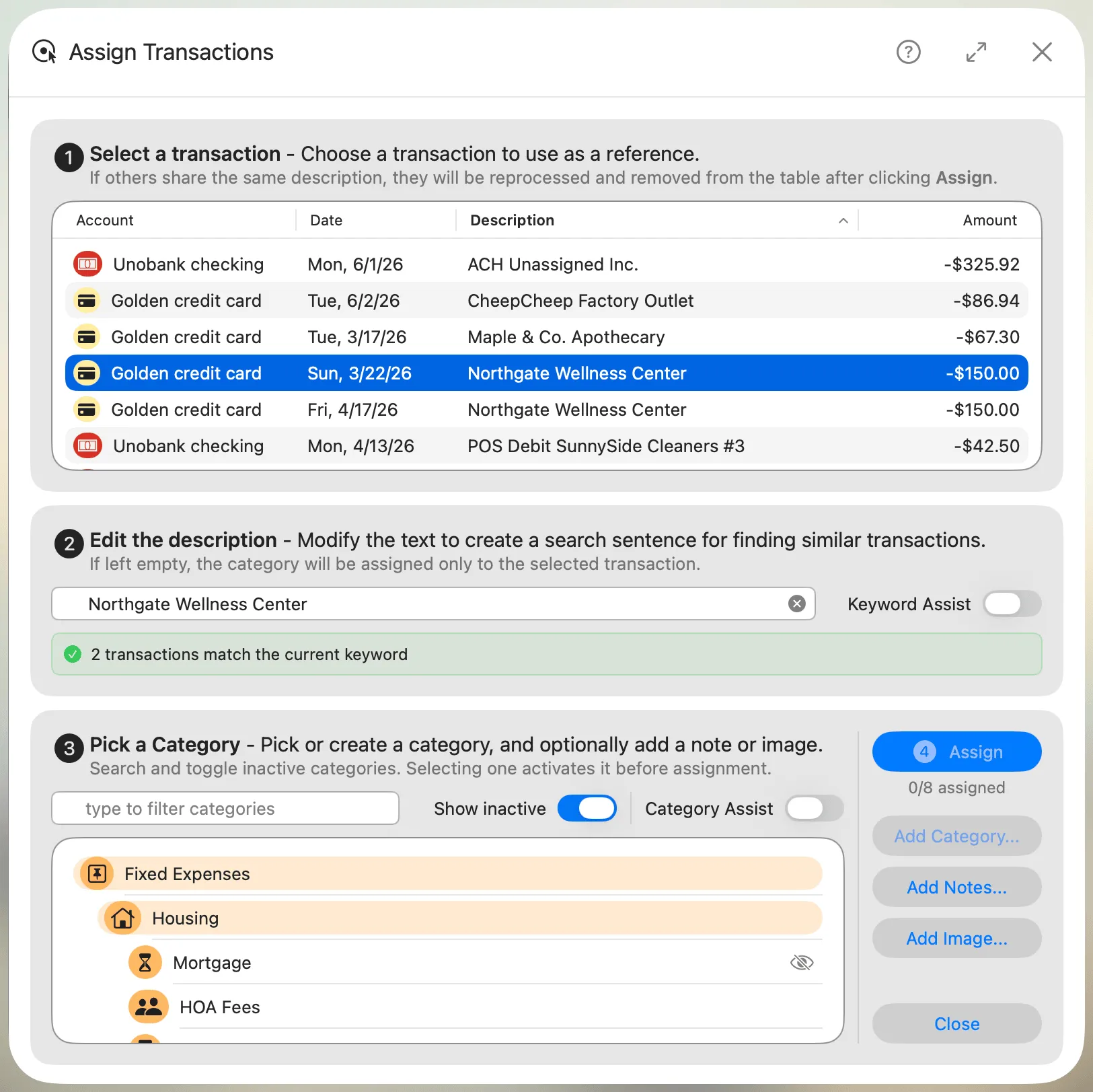
How it works
These steps describe the dialog as it works on any Mac. macOS 26+ adds an optional AI Assist layer on top, covered at the end of this page.
(1) Select a transaction
Choose a transaction from the list to use as a reference. Its description will be used to define a keyword or search phrase.
If other transactions share the same description, they will appear as matches and will be reprocessed together once the category is assigned. The list is ordered by description.
Click any column header in the transactions list to sort by that column; click again to reverse the order. The sort order isn't saved between launches — the table always opens with its default sort.
(2) Edit the description
Refine the description to create a more specific or general keyword. This helps control how future transactions are matched.
If left empty, the category will be assigned only to the selected transaction.
- Reset — Restores the field to the original transaction description. Hidden when the keyword matches the description.
- Clear — Empties the keyword field entirely.
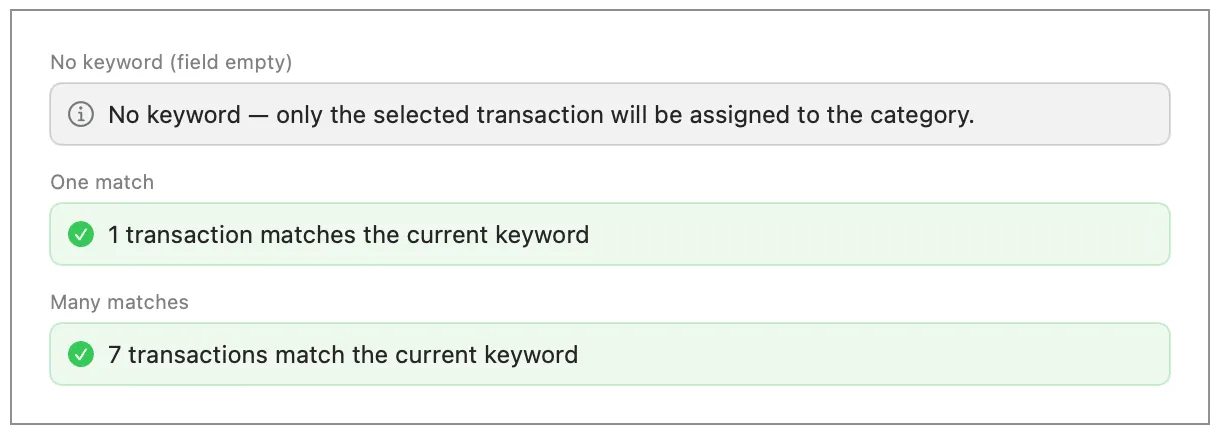
- Match counter — Below the keyword field, a green bar shows how many transactions match the current keyword, so you can gauge the impact before assigning. When the field is empty, it instead reminds you that only the selected transaction will be categorized.
Wildcard pattern
You can use the \*\ pattern in keywords to represent zero or more characters. This is useful when transaction descriptions share a common structure but vary in the middle — for example, reference numbers, dates, or check numbers.
Each segment between \*\ markers must appear in order within the transaction description. Wildcard keywords work both in the Assign dialog (match counter and batch assignment) and during transaction imports (auto-categorization). Examples:
PAYROLL\*\DEPOSIT— matches "PAYROLL 12345 DIRECT DEPOSIT", "PAYROLL ACH DEPOSIT", etc.CHECK\*\WITHDRAWAL— matches "CHECK #1042 WITHDRAWAL", "CHECK 5678 ATM WITHDRAWAL", etc.ARMAZONES\*\MARKETPLACE— matches "ARMAZONES.COM MARKETPLACE", "ARMAZONES BOOKS MARKETPLACE", etc.
Keyword warnings
On macOS 26 or later, two warnings help you avoid common keyword problems. They appear whenever the keyword changes, whether or not AI Assist is turned on.
Keyword mismatch — Appears when the keyword in the field doesn’t match the selected transaction’s description. This means the keyword won’t match the current transaction during future imports. You may want to reset the keyword or verify it’s intentional.

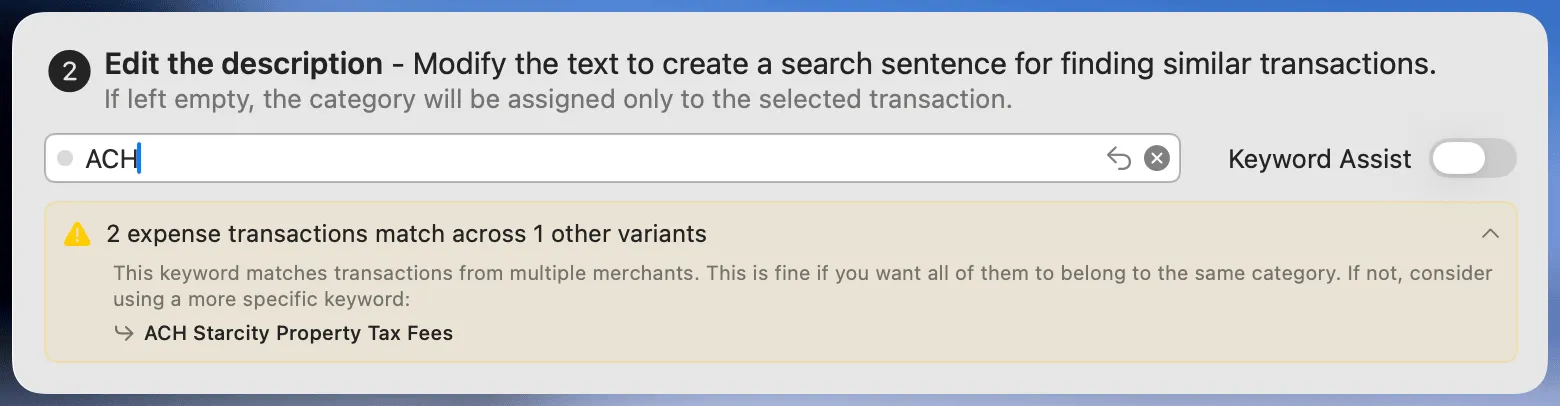
Broad keyword — Appears when the keyword is too generic and matches unrelated transactions. Expand the warning to see examples of other transaction descriptions that would also match. If Keyword Assist is turned on, the AI will automatically attempt to refine broad keywords, but you can also edit the keyword manually to make it more specific.
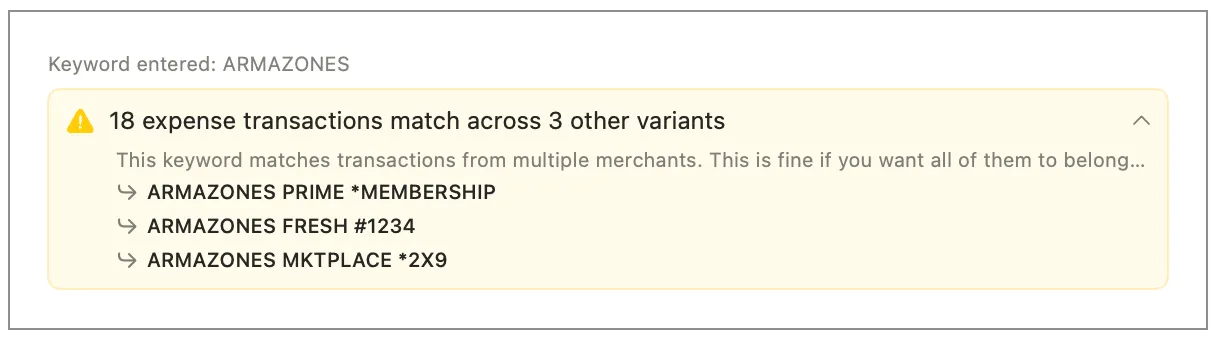
Here's another example of a broad keyword warning for "ARMAZONES":
(3) Pick a category
Choose the most appropriate category for the transaction. Only subcategories (categories without children) can be selected. The categories presented will match the transaction amount signal, with positive for income and negative for expenses.
- Search — Type in the search field to filter categories by name.
- Show inactive — Toggle to include inactive categories in the list. If you assign to an inactive category, it will automatically be activated.
- Clear — Empties the category search field.
(4) Assign
Click Assign to apply the selected category. The button is only enabled when both a transaction and a category are selected. If you entered a keyword in step 2, it will be saved and used to auto-categorize future transactions with matching descriptions.
All matched transactions will be categorized and removed from the list. A counter below the button tracks how many transactions have been assigned (e.g., "3/8 assigned").
Add Category (Optional)
Click Add Category... to create a new category if none of the current ones apply. You’ll be taken to the category editor.
Add Notes (Optional)
Use Add Notes... to attach a note to the assignment. The same note will be added to all matched transactions.
Add Image (Optional)
Click Add Image... to attach a receipt or supporting image. Only one image can be added per transaction. This image will be applied to all matched transactions.
AI Assist (macOS 26+)
Everything above works on every Mac, with or without AI. On macOS 26 or later with Apple Intelligence enabled, you can turn on AI Assist — two toggles that use the on-device model to speed up categorization by suggesting keywords and categories for you. It runs entirely on your computer, so no internet access is needed.
AI Assist requires Apple Intelligence to be enabled on your Mac. The toggles are visible on all macOS versions but will be disabled if the on-device model is not available. This feature will improve as Apple Intelligence improves.
Keyword Assist
When enabled, the AI analyzes the selected transaction’s description and suggests a shorter, more generic keyword. This is useful when descriptions contain unique reference numbers or dates that would prevent matching with similar transactions.
The suggested keyword appears in the description field with a typing animation. You can accept it, edit it further, or click Reset to restore the original description.
Category Assist
When enabled, the AI suggests a category based on the current keyword (or the transaction description if the keyword field is empty). The suggestion appears in the category search field, filtering the category list to help you find the right match.
You can accept the suggestion by selecting the category from the filtered list, clear it and type your own search, or turn off the toggle to clear the field.
Suggestion indicators
When AI Assist is enabled, two indicators show how its suggestions are going:
| Appearance | What it means |
|---|---|
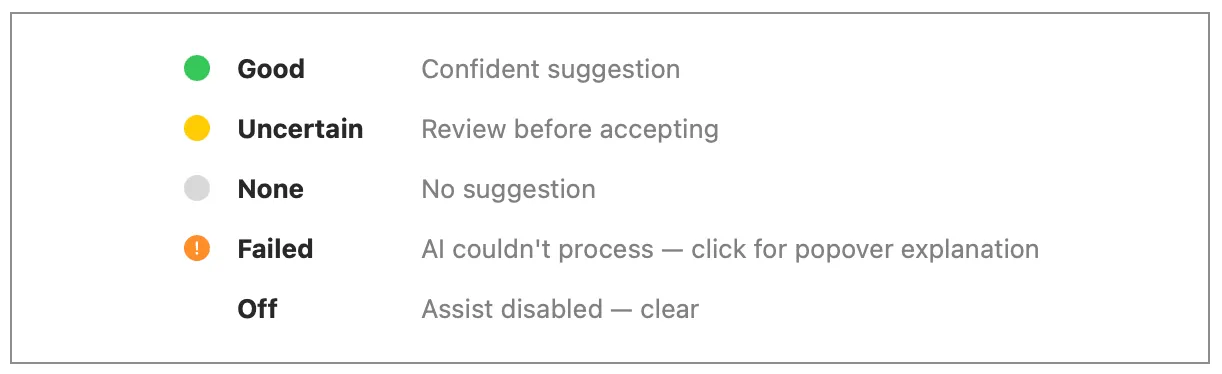 |
Confidence indicator — A small dot beside the keyword and category fields shows how confident the AI is in its suggestion: green for a good match, yellow for uncertain (review before accepting), and gray when there’s no suggestion yet. An amber alert dot means the AI couldn’t process the transaction — click it to read why. When the matching Assist toggle is off, the dot is a blank placeholder. |
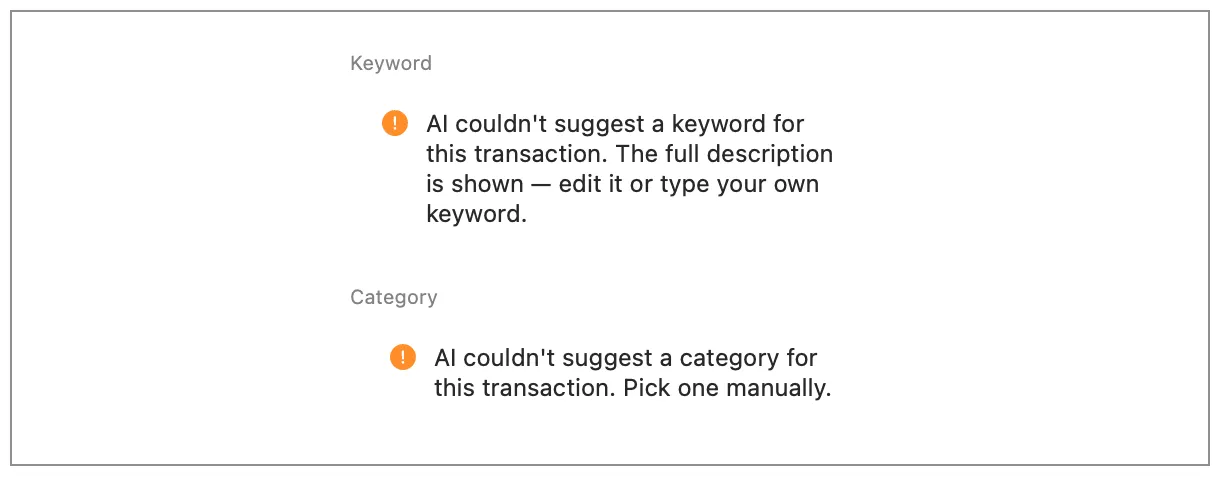 |
AI couldn’t suggest — When the AI can’t process a transaction, the amber dot becomes a button and opens a short popover — automatically the first time, then whenever you click the dot. The keyword field falls back to the full description, and you pick the category manually. |