Scheduled Transactions
The Scheduled Transactions screen lets you define recurring transactions, such as subscriptions, bills, or regular income. Each scheduled transaction automatically generates a list of actual transactions based on its repeat settings—daily, weekly, monthly, or other intervals.
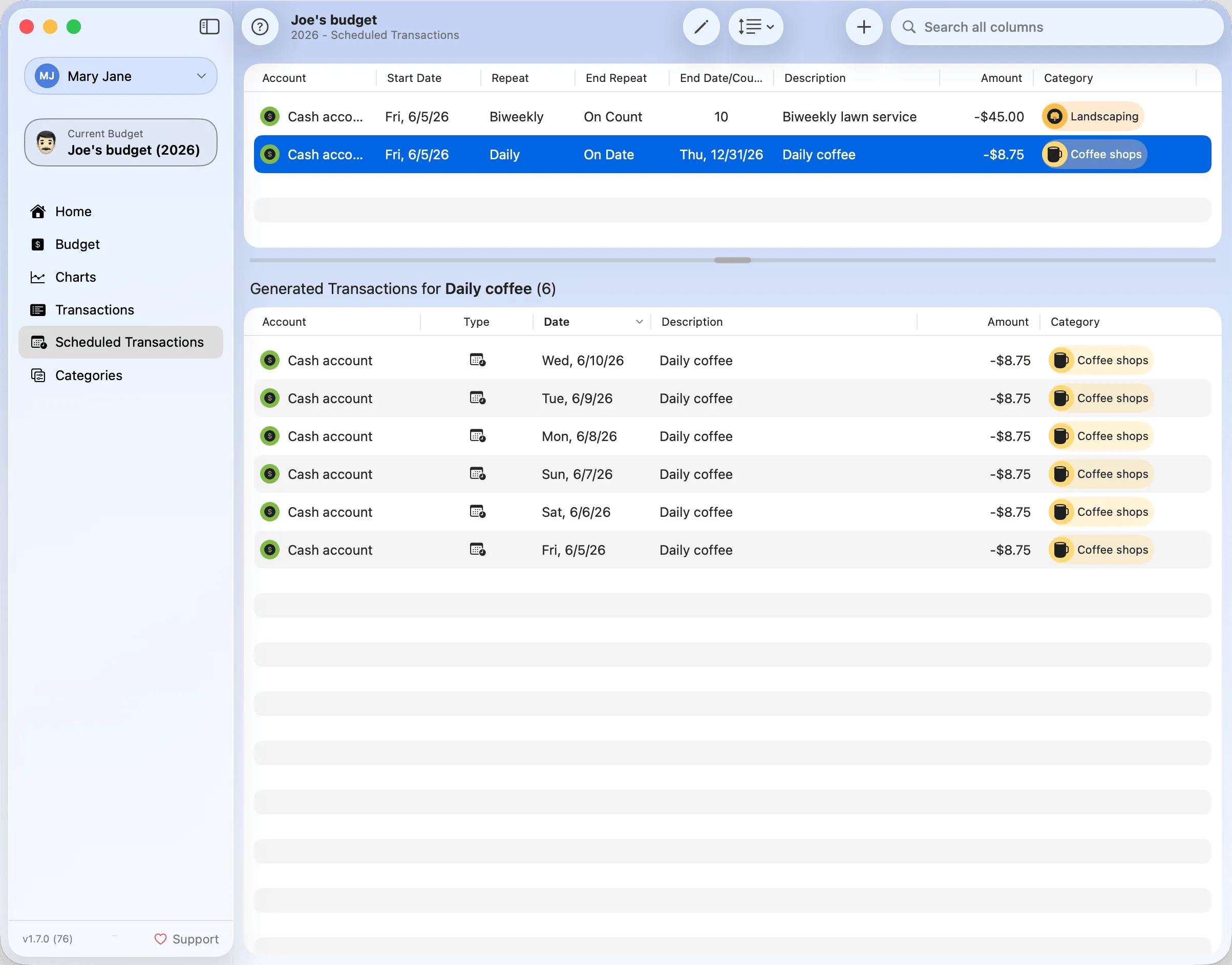
You can edit, reorder, and filter the list using the controls in the toolbar. Selecting any row in the top list reveals its generated transactions in the bottom panel. These generated transactions can later be reviewed, categorized, or adjusted like any manually entered transaction.
Toolbar

The toolbar at the top of the view gives access to actions related to scheduled transactions.
- Edit: Opens the selected scheduled transaction for editing. You can update its repeat frequency, amount, category, or end condition.
- Order: Lets you control how scheduled transactions are sorted.
- Add (+): Creates a new scheduled transaction from scratch.
- Search: Lets you filter the list by any column, including description, account, category, and amount.
Order Menu
Click the sort icon to choose how scheduled transactions are grouped and ordered. Choose a single column or a multi-level grouping. Single-column sorts break ties by start date, so repeated entries stay grouped and in order:
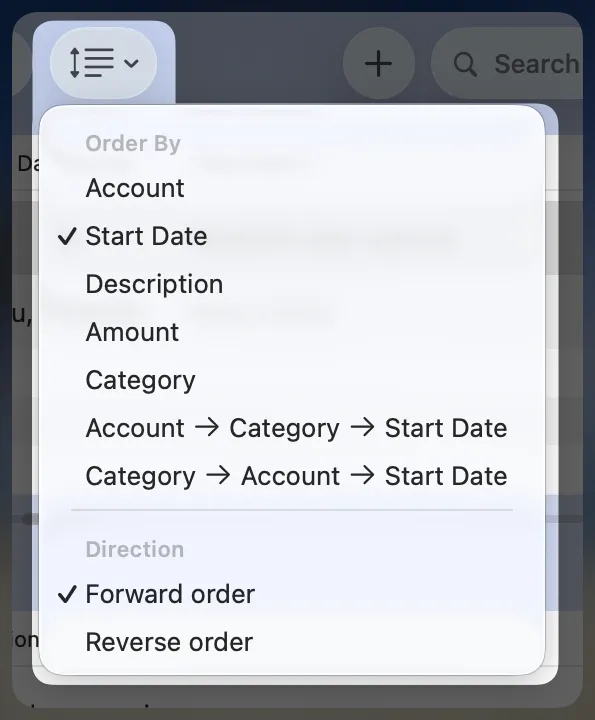
- Account (then by start date)
- Start Date (then by description)
- Description (then by start date)
- Amount (then by start date)
- Category (then by start date)
- Account → Category → Start Date
- Category → Account → Start Date
You can also toggle between Forward and Reverse order; each option opens with a sensible default (for example, Amount starts with the largest first). Your sorting preference is remembered until changed.
This helps tailor the view to your preferences, especially when managing many recurring entries.
Generated Transactions
The bottom panel displays the list of actual transactions generated by the selected schedule. These are previewed according to the repeat frequency and span from the start date until the end condition is met.
For each generated row you’ll see:
- Account
- Type
- Date
- Description
- Amount
- Category
Click any column header in this panel to sort by that column; click again to reverse the order. The sort order isn't saved between launches — the panel always opens with its default sort.