Export Transactions
Your data is never locked in. The Transactions screen exports to a CSV file that opens in Numbers and Excel, so you can build your own reports on top of what Budgix holds. Transactions generated by a schedule are included like any other.
To export transactions, click the Export toolbar button in the Transactions screen, or use the Transactions menu and select Export Transactions as CSV… (⌥⇧⌘E). The button is disabled while the list is empty.
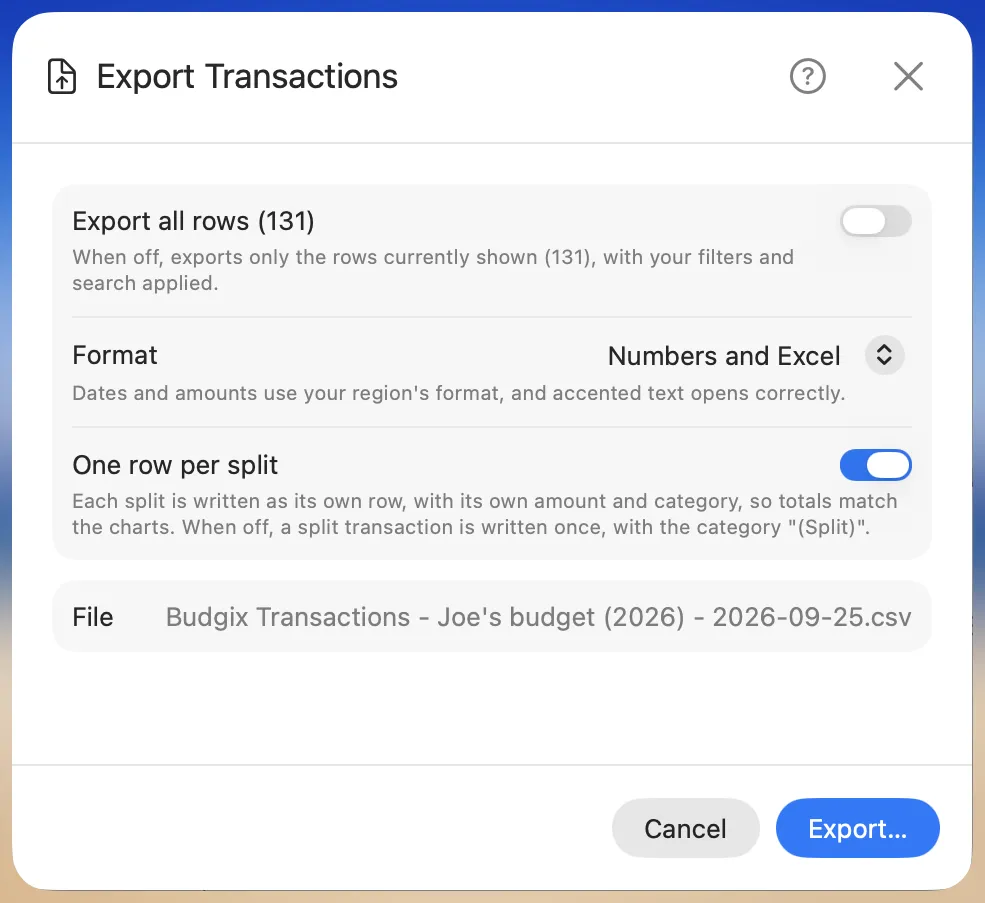
Export all rows
- Off (the setting for your first export) — exports exactly the rows in the list, with the account, period, category and type filters, the search, and the sort order applied.
- On — exports every transaction of the budget, ordered by date, regardless of the filters.
The toggle shows how many transactions the budget holds, and the text beneath it how many are currently listed.
Format
| Option | Dates | Amounts | Best for |
|---|---|---|---|
| Numbers and Excel | Numeric, in your region's format (for example 9/17/2026 or 17/09/2026) | Your region's number format, no currency symbol | Numbers, Excel, Google Sheets — accented text opens correctly |
| Plain text | ISO dates (2026-09-17) |
Plain decimals (-12.34), no grouping |
Scripts and data tools that expect unformatted values |
Amounts are signed the way the app stores them: expenses negative, income positive.
One row per split
When this option is on (the setting for your first export), a split transaction is written as one row per split, and the original transaction is not written on a row of its own.
On a split row, the columns you total and group by describe the split, not the original transaction:
- Amount, Category, Category Path and Budget Goal are the split's own. Each split can have a different category from the original transaction, and its row shows the split's category.
- Type is Split, and Split Description holds the split's description. Split Description is filled on split rows only.
- Transaction ID, Account, Date, Description, the Imported columns, Notes and Has Image come from the original transaction, so all rows from one split share the same Transaction ID.
For example, a 100.00 Costco purchase in Shopping, split into 40.00 of wine and 60.00 of food, is written as two rows:
| Transaction ID | Type | Description | Amount | Category | Split Description |
|---|---|---|---|---|---|
| A1B2… | Split | Costco | -40 | Alcohol | Wine |
| A1B2… | Split | Costco | -60 | Groceries | Food |
Every amount appears once, under the category it was spent in, so summing Amount or grouping by Category in Numbers or Excel gives the same totals as the Budgix charts. Shopping, the original transaction's category, does not appear: the charts ignore it too once a transaction is split.
When the option is off, each split transaction is written once, as the original transaction: its full amount, the category (Split), and no category path or budget goal. Use this when you need one row per bank transaction, for example to check the file against a statement.
When you click Export…, the app remembers all three choices — Export all rows, the format and One row per split — for your next export. Clicking Cancel discards any changes.
Columns
The header row is always written in English, in this order:
| Column | Content |
|---|---|
| Transaction ID | The transaction's unique identifier, useful to match rows across exports. Split rows carry their parent's. |
| Account | The account name. |
| Type | Manual, Imported, Autogenerated (by schedule), or Split for a split row. |
| Date | The transaction date, formatted per the chosen format. |
| Description | The description as shown in the app. |
| Amount | The signed amount. On a split row, the split's amount. |
| Category | The category name; empty when the transaction is uncategorized. On a split row, the split's category, which can differ from the original transaction's. (Split) when One row per split is off. |
| Category Path | The full path of the category in the Category column, for example Housing > Rent. |
| Budget Goal | The budget goal of the category in the Category column, if any. |
| Split Description | The split's description; filled on split rows only. |
| Imported Date, Imported Description, Imported Amount | The values as they were in the bank file; filled for imported transactions only. |
| Notes | Your notes. Line breaks are kept inside the quoted field. |
| Has Image | Yes when an image is attached, otherwise No. |
Fields containing commas, quotes or line breaks are quoted following the standard CSV rules, so every spreadsheet reads them back correctly.
Keeping a full copy of everything
A CSV export covers your transactions. To keep a complete copy of every budget — accounts, budget goals, categories, schedules and transactions together — use Settings → Backup/Restore → Backup Now. A backup is the only file Budgix can read back, so it is what you want when you move to a new Mac. See Settings for the Backup/Restore page.
Exports are written only to the file you choose in the save dialog. Nothing leaves your Mac, and a cancelled save dialog simply returns you to the export options.